It works like a TV game show: the host runs the controls on a phone, and everyone watches the Display on the biggest screen in the room. They sync instantly over the internet using a short room code — so the two screens just need to be on the same code, not the same wifi.
Set it up in 3 steps
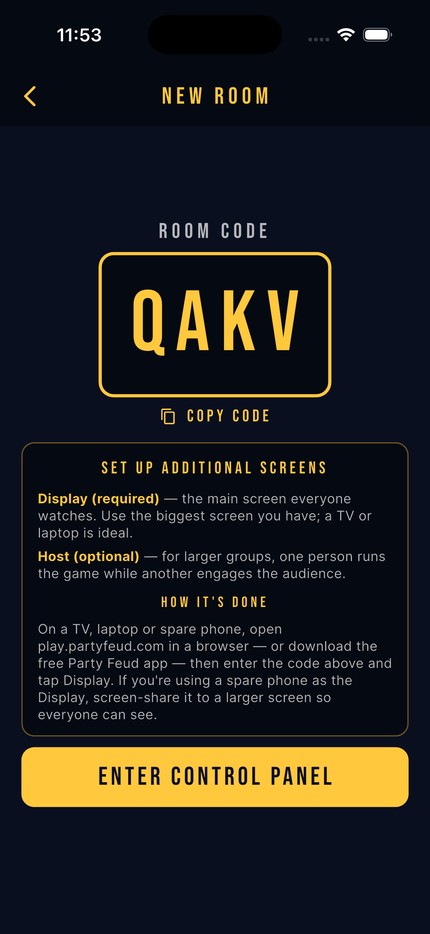
On one phone, open Party Feud, pick Survey Showdown, then tap Start a New Room. You'll get a short room code (like “QAKV”). This phone is the host — it runs the game and the audience never sees it.
On your TV, laptop, or tablet, open Party Feud — either in the iPhone / iPad app or at play.partyfeud.com in any browser — choose Display, and enter the room code. The game board appears for everyone to see. (For a TV: open the Display on a laptop or tablet and screen-share it, or use the TV's own browser.)
Playing to a large audience? A second device can join as the MC screen — a read-only “caller” screen the emcee reads the questions out from. Open it the same way (the app or a browser) and pick it instead of Display when you enter the code. The main controller still runs the game.
That's it — split into two teams
Divide the room into Team A and Team B, and you're ready to go. New to the game itself? Here's how a round works, step by step.